Microsoft Virtual Server R2 - Step by step installation


  Date mise à jour :

Retour accueil  


Sommaire :
Tout sur ...
- Histoire de Windows
- Migrer un parc
- Quel Windows choisir ?
- Windows Deployment WDS
- Sécuriser Windows XP
- Windows, IIS et la sécurité
- Windows Update
- Internet
- l'ADSL
- Réseau domestique
- RSS - Blogs
- Découverte
- Sécuriser Windows XP
- Service Pack 2
- Service Pack 3
- Service Pack 2 FAQ
- Comment organiser ses données ?
- Formatage et partitionnement
- XP plus lent que 2000 ?
- Base de Registre
- Principales clefs du registre
- Les SID
- Internet Explorer 7
- FAQ Windows NT/XP
- Sommaire
- Découverte
- Installation pas-à-pas
- Gestion des photos
- Internet Explorer 7
- UAC FAQ
- La base de registre
- Liens utiles
- Documentations
- Sommaire
- Installation pas à pas
- Windows Server 2003 SP1
- Tout sur Active Directory
- ADMT
- Installation de Terminal Server
- Gestion des rôles
- Partage de fichiers
- Partage d'impressions
- DNS
- DHCP
- WINS
- Windows Deployment WDS
- Sommaire
- Présentation
- Installation
- Sommaire
- Installation pas-à-pas
- Windows Deployment WDS
- Hyper-V
- Commencer avec la version Core
- Présentation
- FAQ Exchange
- Installation
- Sécuriser
- Structure et fonctionnement
- Outils
- Optimisation
- Virtual Server
- Installation
- Gestion des VM
- Optimisation
- VMM 2007
- Hyper-V
- Météo
- Liens utiles
- Présentation
- Mon CV
- Mon site Perso
- Mon site de photos - Mon BLOG de photos
Laissez moi un message
English version
Dernières nouvelles de MToo :
Abonnez vous ici :


  • Introduction :

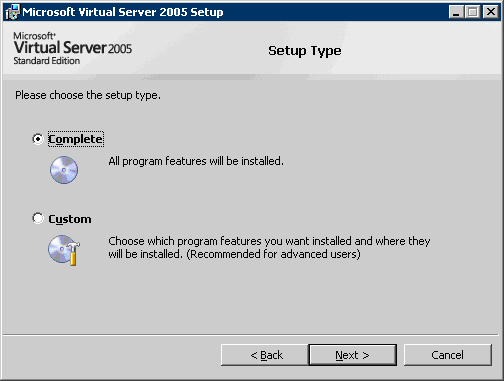
Microsoft Virtual Server 2005 R2 is the new virtualistation solution made by Microsoft.

Here is the step by step installation :

  • Needs for server :

Microsoft Windows Server™ 2003, Standard Edition
Microsoft Windows Server 2003, Enterprise Edition
Microsoft Windows Server 2003, Datacenter Edition
Microsoft Windows® Small Business Server 2003
Microsoft Windows XP Professional

If you want to use the administration web site, IIS must be setup on the server.

Install Virtual Server. There are two general configuration options for installing Virtual Server. You can use a single physical computer for both the Virtual Server service and the Website components, or you can use multiple computers, separating the Virtual Server service from the Website components. For more information about these options

  • Installation

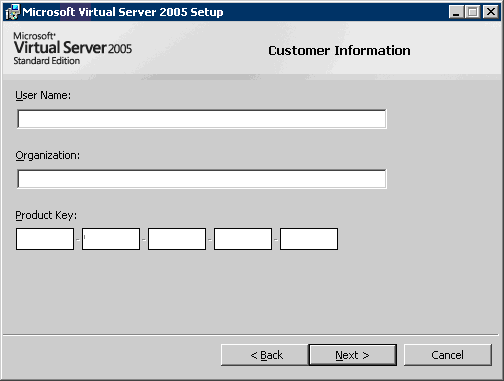
Run setup then type the serial number :
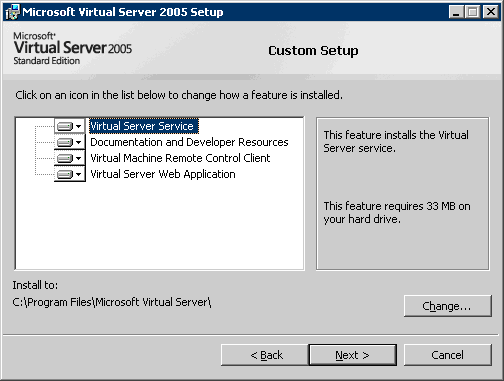
If you choose custom there is 4 options :
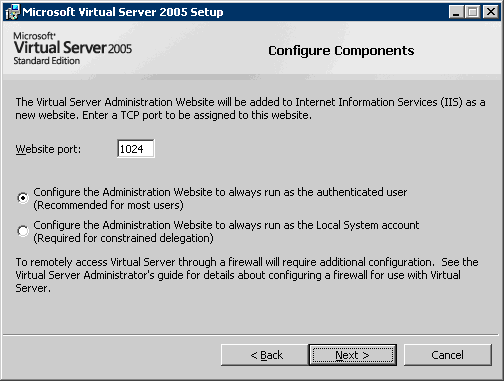
You can also change the default website port for the administration website :
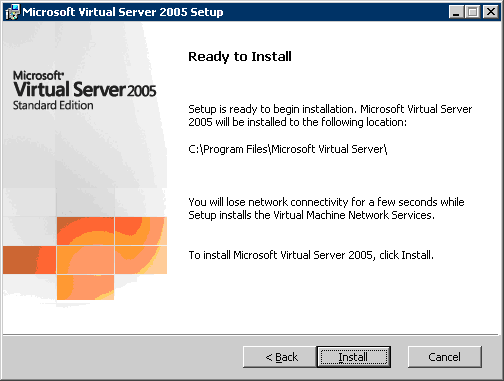
Setup will now copy files :
End of setup program opens  C:\Program Files\Microsoft Virtual Server\summary.html

That document reminds the path for administration website :

http://myserver:1024/VirtualServer/VSWebApp.exe?view=1

and local path for documentation: C:\Program Files\Microsoft Virtual Server\Documentation\


Back


  Date mise à jour :

Retour accueil